- Accessing the Similarity Report
- Similaritiy Scour percentage rangers
- Using the Match Overview and Match Breakdown
- Viewing all sources
- Exclude quotes and bibliography
- Matches by word count or %
- Excluding sources via Match Overview
- Excluding sources via All Sources
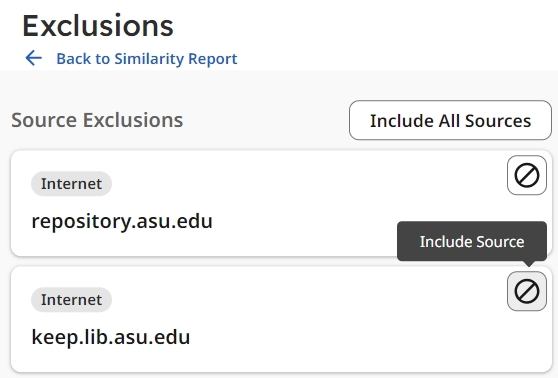
- Restoring excluded sources
- Requesting the deletion of submissions
- Error message: "The password for this account has expired"
- Account Locked Due to Inactivity for More Than 6 Months
Use filters to show or hide certain matches and sources according to their relevance. For example, turning on the Bibliography exclusion filter hides matches found in the bibliography or reference list.
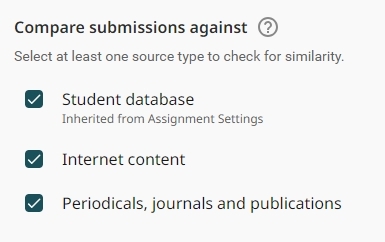
Compare Submissions Against
These filters control which source types are included in the Similarity Report. The source type is shown on each source card.
Exclusion Filters
Use these filters to exclude selected parts of a submission from the Similarity Report.
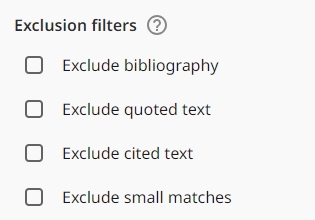
- Bibliography: Hide or include matches found in the bibliography, works cited, or reference list.
- Quotes: Hide matches that appear within quotation marks.
- Citations: Hide matches that include in-text citations.
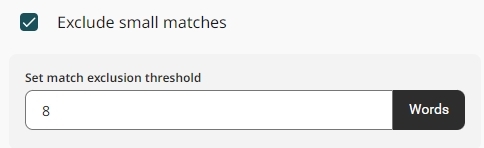
- Small Matches: Set a minimum word count for matching text blocks to remove less relevant matches. For example, enter 8 to display only matches containing at least eight words.
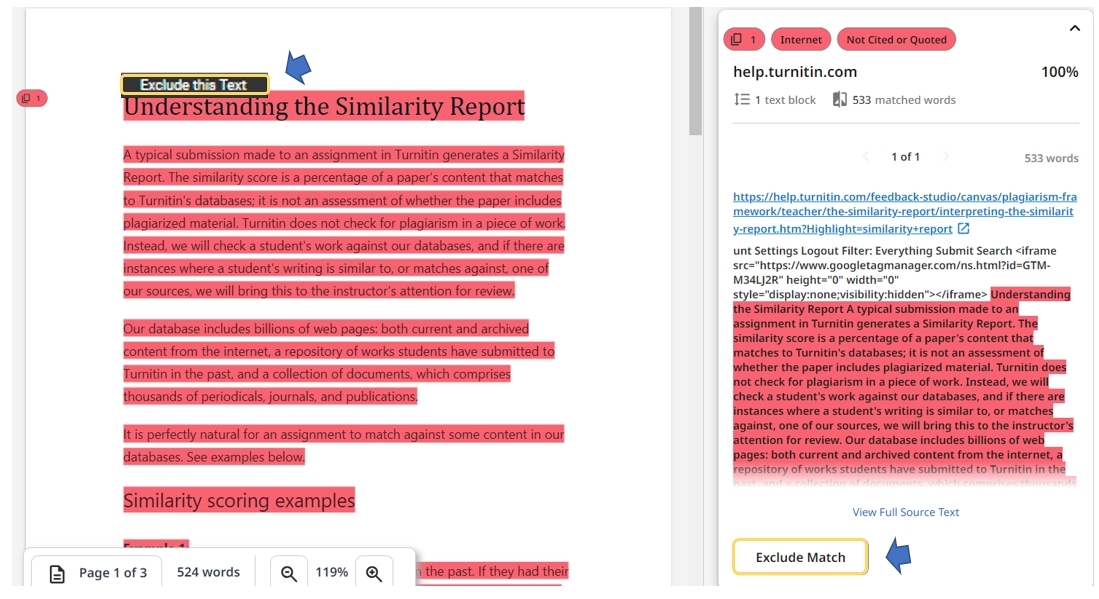
- In the Match Groups list, select a highlighted passage in the document or select a source card from the list.
- Select the Exclude button in the document or on the source card.
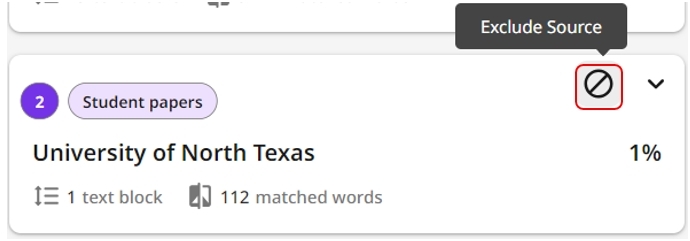
- Navigate to the Sources list.
- Select a highlight in the document to focus on its source in the right-side panel, or select a source card directly from the list.
- Select the Exclude icon on the source card to exclude all text matching that source from the report.
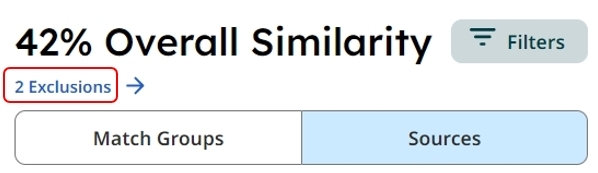
When exclusions are applied, the number of exclusions appears directly below the overall similarity score. Select this link to view the complete list of excluded items.