
Turnitin Instructor Guide- Apply and setup your account
Turnitin operating model
Instrucor self-submission paper check
(Choose one of the following choices)
Similarity report (classic report)
- Accessing the Similarity Report
- Similaritiy Scour percentage rangers
- Using the Match Overview and Match Breakdown
- Viewing all sources
Managing exclusions and filters (classic report)
- Exclude quotes and bibliography
- Matches by word count or %
- Excluding sources via Match Overview
- Excluding sources via All Sources
- Restoring excluded sources
Similarity report (Enhanced report)
Managing filters and exclusions (Enhanced report)
FAQ
Introduction to Turnitin
Turnitin is a web-based text-matching software system designed to check electronically submitted documents for similarity against other documents in their database.
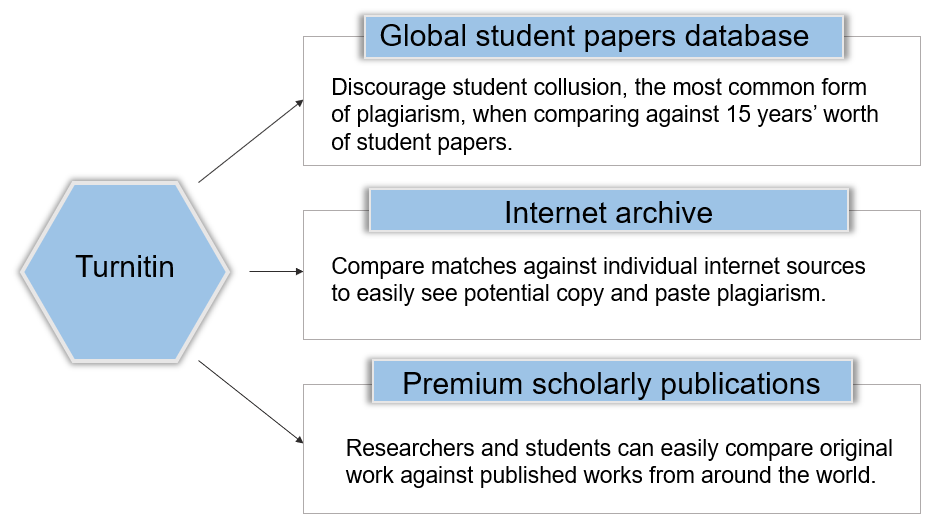
Turnitin has three primary databases. Each one can be used to help identify different types of plagiarism.
Global student papers database:
This database discourages student collusion, the most common form of plagiarism, by comparing submitted documents against 15 years’ worth of student papers.
Internet archive:
This database compares matches against individual internet sources to detect potential copy and paste plagiarism.
Premium scholarly publications:
This database allows researchers and students to easily compare original work against published works from around the world.
Apply for an account
Faculty members and departmental teaching assistants at National Chengchi University who require a Turnitin account should email the following information to libnews@nccu.edu.tw . Please use “Turnitin Account Application” as the email subject.
Please include the following information in your email:
| First name | [Please enter your first name] |
| Last name | [Please enter your last name] |
| NCCU email address | [NCCU email address only] |
| Department / Unit | [Please enter your department or unit] |
- Log in to your email account and locate your welcome email from Turnitin.
Select Activate Account to get started.
Enter your email address.
- Select Send Email. We will send you another email to validate your account and allow you to create a password. The link within this email will remain active for 24 hours for security purposes.
Access the second email and select Set Password.
- Enter and confirm a password. Your password must:
- have a minimum of 12 characters
- include at least one number
- include upper and lower case letters
- include at least one special character
- Select Create Password.
- Now you can log in to your new account.