
- Accessing the Similarity Report
- Similaritiy Scour percentage rangers
- Using the Match Overview and Match Breakdown
- Viewing all sources
- Exclude quotes and bibliography
- Matches by word count or %
- Excluding sources via Match Overview
- Excluding sources via All Sources
- Restoring excluded sources
- Requesting the deletion of submissions
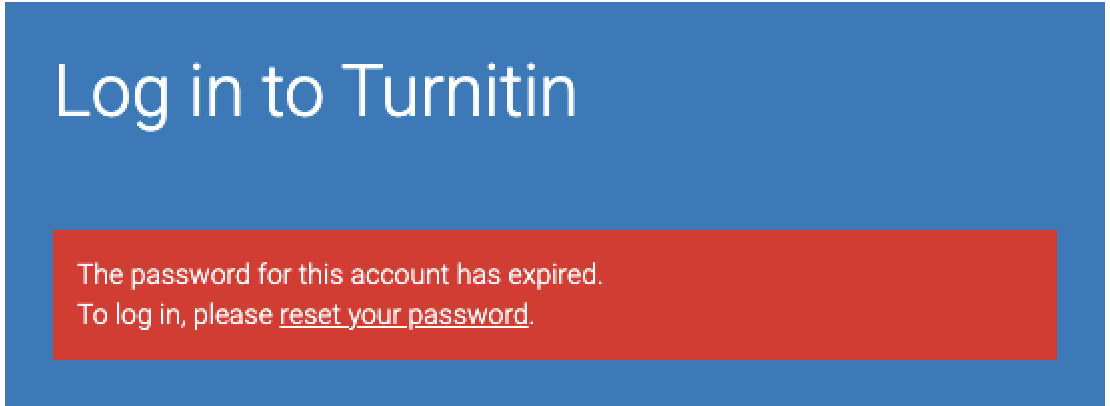
- Error message: "The password for this account has expired"
- Account Locked Due to Inactivity for More Than 6 Months
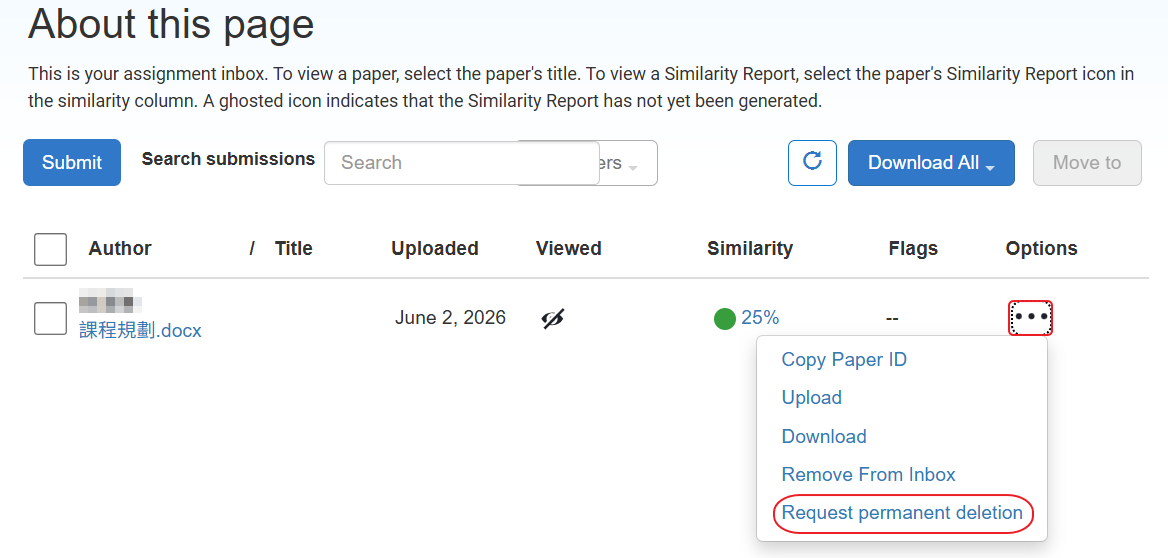
- From the assignment inbox, locate the submission that requires deletion from the repository and select the three-dots menu under the Options header. From the drop-down that appears, select Request permanent deletion.
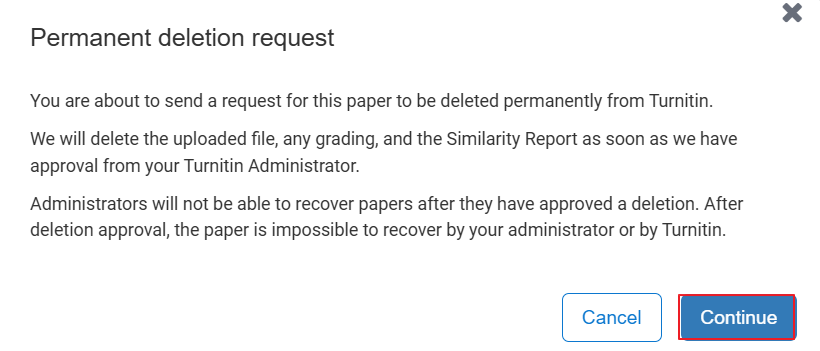
- A modal will appear and provide you with additional information about paper deletions. Read through and select Continue.
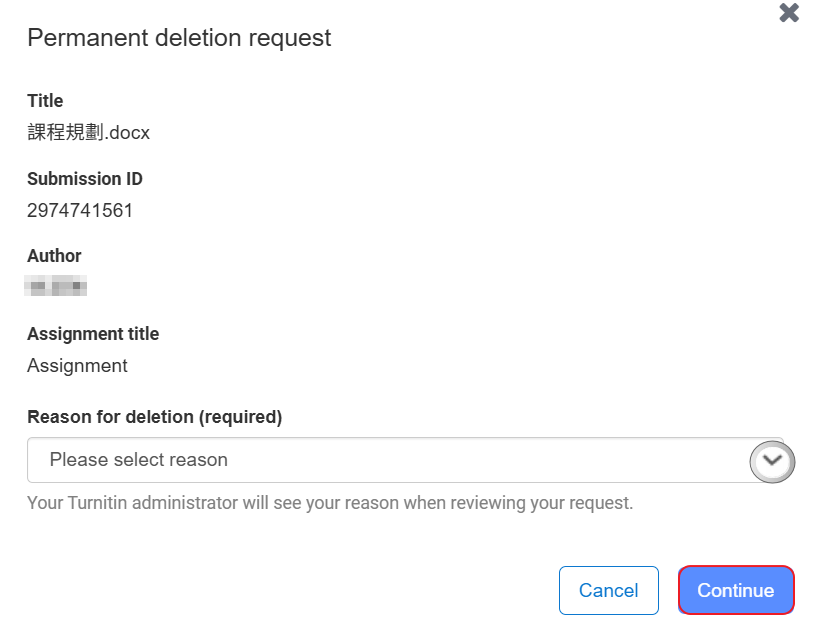
- Choose a Reason for Deletion from the dropdown at the bottom of the modal. Select the blue Continue button to proceed.
If the assignment settings were changed to No repository after submission, the settings need to be restored to Standard paper repository in order to complete a paper deletion request. If the settings have always been No repository, you can simply remove the paper from the assignment inbox yourself to remove it permanently.
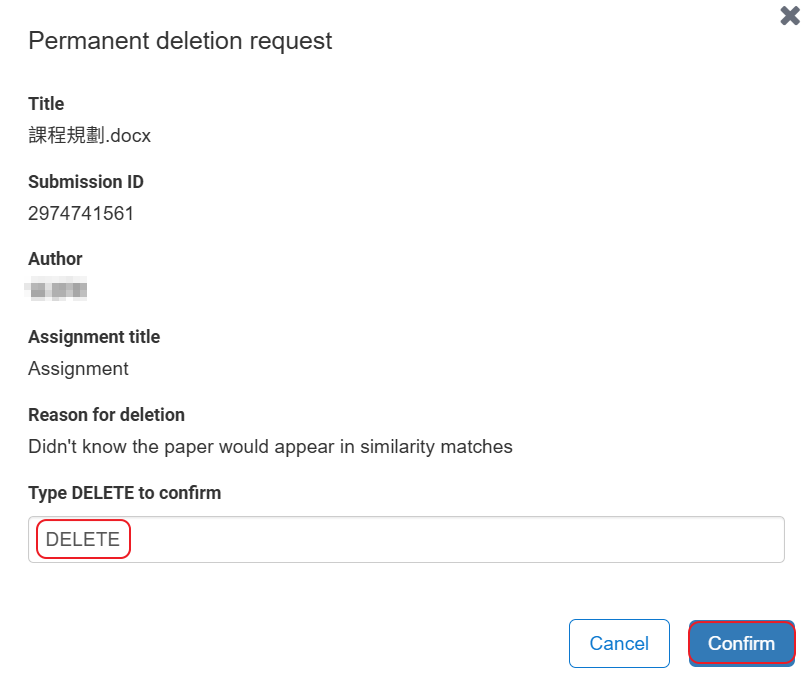
- Review the details of your request to ensure everything is correct. Then, type “DELETE” into the text area at the bottom to confirm your request. Select Confirm to submit your request.
- While your request is pending, you will see a trashcan and clock icon in the assignment inbox beside the Submission ID column of the paper you requested the deletion for.

Turnitin sends administrators email notifications regarding pending paper deletion requests only once a week. If you would like your papers deleted as soon as possible, please contact us at libnews@nccu.edu.tw first so we can process your request promptly.
A teacher account will be locked if it has not been accessed for more than 6 months and must be unlocked by an administrator.
If you have already reset your password and logged in to your Turnitin instructor account, but cannot see the “Add Class” button on the homepage, or if your existing classes are displayed as “Inactive,” this may indicate that the account has not been accessed for more than 6 months. For security reasons, the system automatically locks accounts that have been inactive for an extended period. Please contact us at libnews@nccu.edu.tw to have your account unlocked.